Help
General information
Configuration wizard
By querying your system data (see below), this wizard checks whether your system fully or partially meets the requirements for using Mein ELSTER. The following components are checked:
- Operating system
- Browser
- JavaScript
Which account type is suitable for whom?
Account types
Which account type you should choose for your user account depends on the activity you are carrying out and for whom you wish to make declarations.
- For a private individual:
You are an employee (with or without a partner) and prepare declarations and other applications exclusively for yourself, or only to a limited extent for close relatives. - For an organization:
You are an employer, entrepreneur with employees or prepare declarations and other applications for an association or administration.
Account types for sole traders and solo self-employed persons
Solo self-employed persons and sole traders are self-employed persons in all sectors with commercial or freelance income. If your sole proprietorship is not a corporation and you do not have any employees, we recommend the "For a private individual" account type.
Identification options
What is the difference between identity verification via NECT and the online ID function?
Both online identity checks use your ID card and you need an app for each, which must be installed on a smartphone or Tablet.
NECT GmbH is a company from Hamburg and uses both video and voice recordings to check whether the picture on your ID card is really you. For more information, please follow this link: Nect | Product individual The Online ID function uses the AusweisApp, published by Governikus GmbH & CO.KG. Here, the chip in your ID card is read using the NFC function of your mobile device or a card reader and your identity is confirmed. You will need the ID card PIN that you received from the registration office when you received your ID card. For further information, please follow this link: AusweisApp: Use the online ID function.
Requirements for the respective identification option:
| NECT | BadgeApp2 |
|---|---|
Smartphone / Tablet | NFC-enabled smartphone or card reader |
Nect Wallet app | ID card app |
Identity card | ID card and 6-digit ID card PIN |
If your smartphone / Tablet does not have an NFC function and you do not have a card reader, please use the online identity check with the Nect Wallet app.
Information about the partner NECT
NECT GmbH is a company based in Hamburg that offers identification with an ID card using the Nect Wallet app, which you can also use without an ID card PIN.
Further information can be found at Nect | About.
Business-oriented registration
Business-oriented registration and first-time Logins
You have successfully completed the registration process optimized for companies. You now have the option of logging into "Mein Unternehmenskonto" and "Mein ELSTER" with your user account.
Personal details
E-mail address
Please be sure to enter your "correct" e-mail address. This is very important for the registration process to run smoothly. If the e-mail address is inadvertently entered incorrectly or a fictitious e-mail address is used, you will not receive the e-mail address required for registration. Activation ID not received. In this case, you will not be able to complete the registration successfully and may have to repeat it. Once you have successfully registered, you can change your e-mail address at any time in Mein ELSTER. If you have not received an e-mail despite entering your e-mail address correctly, this may be due to a spam filter or a personal filter setting in your e-mail program.
You may also have informed your email provider that your inbox is evaluated according to your personal search pattern and that Spam messages are automatically rejected or sorted out. In this case, the Provider often offers the option of creating a "list of permitted senders" (Whitelist). This ensures that emails from the listed senders are always accepted. Please add the e-mail address from Mein ELSTER "portal@elster.de" and repeat the registration process if you suspect that you are affected by the problem.
Date of birth
Note on Error Code: 080005207
If you receive this error code on the page for entering the date of birth, a user account already exists for the tax identification number you entered. A new registration is therefore not possible. Instead, please carry out an access renewal in the existing user account. For access renewal
Help with Date of Birth
Entering your date of birth correctly is very important for the registration process to run smoothly (when registering "For a private individual"). If the date of birth is inadvertently entered incorrectly or a fictitious date of birth is used, the automated generation and sending of the Activation Codes unfortunately not possible by letter. In this case, you will not be able to complete the registration successfully and may have to repeat it. The minimum age for using Mein ELSTER is 18 years.
Note for registration with identification number:
If you only know part of your date of birth, you have the option of entering this date as follows:
- Only month of birth known: enter the birthday as "00". The month and year of birth can be entered as usual. Example: 00.03.1967
- Only year of birth known: enter "00" for both the birthday and the month of birth. Example: 00.00.1967
User name
Under User name, you can enter a freely selectable character string (maximum 16 characters). The user name is used to distinguish between several user accounts of one user in Mein ELSTER. The user name in combination with the email address entered must therefore be unique.
Please note: The user name (and any personal data it contains) is transmitted in unencrypted form in Mein ELSTER emails.
Security query
When entering your personal data, you must also select and answer a security question from the questions provided. The security question will later be used to delete your personal access to Mein ELSTER. Only you and Mein ELSTER know which question and which answer will allow you to delete your personal access.
Captcha
A "captcha" is a security measure to ensure that the registration is not carried out automatically by a bot or similar.
Type the characters and note that they are case-sensitive. When using the audio function, a different character string is played. Both character strings are accepted in the input field.
Verification code
The 6-digit verification code is required to confirm your e-mail address. This ensures that the e-mail address you have entered really belongs to you.
If you have not received an e-mail despite entering your e-mail address correctly, this may be due to a spam filter or a personal filter setting in your e-mail program.
You may also have informed your email provider that your inbox is evaluated according to your personal search pattern and that Spam messages are automatically rejected or sorted out. In this case, the Provider often offers the option of creating a "list of permitted senders" (Whitelist). This ensures that emails from the listed senders are always accepted. Please add "portal@elster.de" to the Mein ELSTER e-mail address and have the Code sent to you again if you suspect you are affected by the problem.
If you want to renew your access but do not have access to the e-mail address you used at the time, you can find in the chat the contact person responsible for correcting the e-mail address stored in the user account.
Where can I find the activation data?
To activate your user account, an activation Code will be sent by post and an activation ID by email.
The activation ID is an 18-digit Code that you need for identification. Please also check your Spam folder if necessary.
Please repeat the registration process if you have not received a letter by post or an email.
password
The password is crucial as a personal password to protect your ELSTER certificate file.
In the case of certificate files, the security of the certificate depends on the selected password, as these could be copied unnoticed (e.g. in the case of Phishing) and the assigned password alone then represents the security anchor.
If you suspect unauthorized copying of the certificate file, you should change the password as soon as possible after Login under "My user account". A new certificate file will be issued and the old one automatically invalidated.
The password can be 10 to 128 characters long.
The password can be formed from a ... z, A ... Z, 0 to 9, you can also choose from the following special characters:
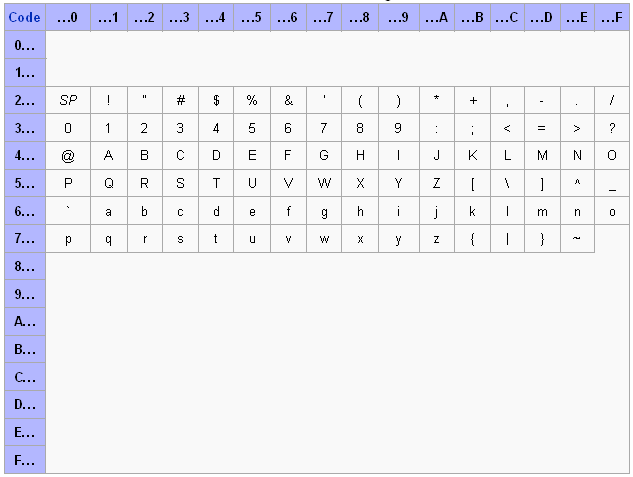
Your password should contain at least letters as well as numbers. You can find more information on this topic at "Passwords" of the Federal Office for Information Security.
Overview of Login options and certificates
Registration with identification number
| Login option | ElsterSecure | Certificate file | Identity card | Security stick | Signature card |
|---|---|---|---|---|---|
| Tax returns, tax declarations and other forms |
|
|
|
|
|
| Retrieval of certificates (pre-filled tax return) |
|
|
|
|
|
| Retrieval of notifications and other letters (digital notification) |
|
|
|
|
|
| Information on the electronic income tax card for employees |
|
|
|
|
|
| Employer functions for ELStAM (electronic wage tax deduction features) |
1) |
1) |
1) |
1) |
1) |
| Tax account query |
|
|
|
|
|
| Management of powers of attorney |
|
|
|
|
|
| Data exchange for municipalities, associations and other institutions with the tax administration | -- | -- | -- | -- | -- |
| Qualification for income tax assistance associations | -- | -- | -- | -- | -- |
| Forms at BZStOnline (further information at www.elster.de/bportal/start) |
|
|
|
|
|

1) To use the employer functions for ELStAM (electronic wage tax deduction features), registration with the organization's tax number is recommended.
Registration with tax number of the organization
| Login option | ElsterSecure | Certificate file | Security stick | Signature card |
|---|---|---|---|---|
| Tax returns, tax declarations and other forms |
|
|
|
|
Retrieval of certificates (pre-filled tax return) |
1) |
1) |
1) |
1) |
Retrieval of notifications and other letters (digital notification) |
|
|
|
|
Information on the electronic income tax card for employees | -- | -- | -- | -- |
| Employer functions for ELStAM (electronic wage tax deduction features) |
|
|
|
|
| Tax account query |
| -- |
|
|
| Management of powers of attorney |
| -- |
|
|
| Data exchange for municipalities, associations and other institutions with the tax administration |
|
|
|
|
| Qualification for income tax assistance associations |
| -- |
|
|
| Forms at BZStOnline (further information at www.elster.de/bportal/start) |
|
|
|
|
1) For the retrieval of certificates, these registration types are only intended for tax advisory professions. With the certificate file Login option, the retrieval of certificates is only possible via authorizations.
Registration only with e-mail address
| Login option | Certificate file | ElsterSecure | Security stick | Signature card |
|---|---|---|---|---|
| Questionnaire for tax registration |
| -- | -- | -- |
Login option certificate file
Step 1: Personal details
The first step is to enter your personal data. This includes
When registering "For a private individual":
- Identification number
- Date of birth
- E-mail address
- User name
When registering "For an organization":
- Federal state
- Tax number of the organization
- Contact details for the contact person
- User name
Step 2: Verify your e-mail address
After entering your data, you will first receive an e-mail with a six-digit verification code to confirm your e-mail address.
Please enter this code on the Mein ELSTER page and then send it.
Step 3: Identification
To verify your identity, you have the choice between an identity check by letter and an online identity check.
Identity verification by mail
You will receive the activation information required to complete your registration separately by email and by mail at the address on file with the registration office or the tax authorities.
Your personal postal address is available from the registration authority under the tax identification number given. The postal address of the organization on whose behalf you are registering is available from the tax authorities under the tax identification number given.
You will receive a Activation ID by e-mail and separately by post a corresponding Activation Code. Delivery by post prevents an unauthorized person from creating an account in your name or in the name of the organization you represent.
As soon as you have received both activation data, you can complete the registration via the link in the e-mail with the activation ID.
Online Identity Verification
With online identity verification, you can prove your identity immediately using your ID card via an online procedure without personal contact and create your user account on the same day.
You have the choice between two online identity verification methods: with the Nect Wallet app or with the online ID function.
For the Nect Wallet app you need
- A smartphone
- The Nect Wallet app
- Your identity card
In this identity check, you download the app from our partner Nect and use it to record your ID card and a selfie video in which you read out two words. The app uses both the video and the voice recording to verify that the person on the ID card is actually you.
For the Online ID function you need
- A smartphone (NFC-capable) or a card reader
- The AusweisApp
- Your identity card
- Your ID card PIN
During this identity check, you download the AusweisApp on the device on which you are carrying out the registration. If you are using a PC or Mac, you can also install the AusweisApp on your NFC-enabled mobile device and use it as a card reader.
Step 4: Create account and initial Login
Identity Verification by Mail
You have already completed step 3 of the registration process and received an e-mail with an activation ID and a letter with an activation Code. In this step, you activate your access with this data. This step is not necessary if you are identifying yourself online.
If you do not want to / cannot click on the link to step 4 in the e-mail with the activation ID, you can use the following links to access step 4 of the registration process: Entry Step 4
In the last step, you need to set up access for a secure Login. It is recommended that you download the ElsterSecure app and use it like a key. Under "Other Login options" you will find further login options, including the option to log in with a certificate file.
You define the name of the certificate file and the corresponding password yourself. You will use this password-protected certificate file (file extension ".pfx") to carry out your Login in future. This password protects access to the private key contained in the file.
A certificate file is automatically created on the next page, which can then be downloaded. You can change the path and file name. You must retain the ".pfx" file extension.
Please only save the certificate file and do not open or import it on your PC. To ensure that saving your certificate file has worked, you now only need to complete the process by logging in with the certificate file you have just downloaded. To do this, select the certificate file on your PC with "Browse" and enter the password you have assigned.
Login with certificate file
Now always enter the correct path and file name of your certificate file and the corresponding password when Login. As soon as you click on the "Login" button, the login is carried out automatically.
If you have purchased several personal accounts, make sure you select the correct certificate file.
Login option certificate file (only with e-mail)
Registration with e-mail address
Only use this option to create a user account if you have not yet been issued a personal identification number by the Federal Central Tax Office or a tax number by your local tax office.
You then only have the option of completing and submitting a tax registration questionnaire.
No other forms or functions are offered.
When creating a user account for yourself (and jointly invested partners) or for an organization, registration is also only possible "With e-mail". This option is only offered with the "Certificate file" Login option.
The first step is to enter your e-mail address and a user name. Then select a security question and enter the answer. To pass the security test, please enter the captcha correctly.
After entering your data, you will first receive an e-mail with a six-digit verification code to confirm your e-mail address. Please enter this code on the Mein ELSTER page and then send it. You will then receive another e-mail with an activation ID and an activation code.
In the next step, you activate your access by entering the activation data. After entering your own personal password, you will receive a certificate file (file extension ".pfx") which you can use to log in to Mein ELSTER in future.
You can change the storage path and the file name. You must retain the ".pfx" file extension. Please only save the certificate file and do not open or import it on your PC. To ensure that saving your certificate file has worked, you now only need to complete the process by logging in with the certificate file you have just downloaded.
Unlocking the functions of a fully-fledged user account
If you know your identification number or the tax number of your organization at a later date, you can activate the functions of a fully-fledged user account. To do this, log in to My ELSTER and select "My user account" - "Activate functions of a fully-fledged user account". You will then be sent an e-mail with an activation ID and a letter with an activation code.
Login option ElsterSecure
Step 1: Personal details
The first step is to enter your personal data. This includes
When registering "For a private individual":
- Identification number
- Date of birth
- E-mail address
- User name
When registering "For an organization":
- Federal state
- Tax number of the organization
- Contact details for the contact person
- User name
Step 2: Verify your e-mail address
After entering your data, you will first receive an e-mail with a six-digit verification code to confirm your e-mail address. Please enter this code on the Mein ELSTER page and then send it.
Step 3: Identification
To verify your identity, you have the choice between an identity check by letter and an online identity check.
Identity check by letter
You will receive the activation data required to complete the registration separately by e-mail and by letter to your address stored with the registration authority or the tax authorities.
Your personal postal address is available from the registration authority under the identification number given. The postal address of the organization on whose behalf you are registering is available from the tax authorities under the tax number given.
You will receive a Activation ID by e-mail and separately by post a corresponding Activation Code. Delivery by post prevents an unauthorized person from creating an account in your name or in the name of the organization you represent.
As soon as you have received both activation data, you can complete the registration via the link in the e-mail with the activation ID.
Online identity check
With online identity verification, you can prove your identity immediately using your ID card via an online procedure without personal contact and create your account on the same day.
You have the choice between two online identity verification methods: with the Nect Wallet app or with the online ID function.
For the Nect Wallet app you need:
- A smartphone
- The Nect Wallet app
- Your identity card
In this identity check, you download the app from our partner Nect and use it to record your ID card and a selfie video in which you read out two words. The app uses both the video and the voice recording to verify that the person on the ID card is actually you.
For the Online ID function you need:
- A smartphone (NFC-capable) or a card reader
- The AusweisApp
- Your identity card
- Your ID card PIN
During this identity check, you download the AusweisApp on the device on which you are carrying out the registration. If you are using a PC or Mac, you can also install the AusweisApp on your NFC-enabled mobile device and use it as a card reader.
Step 4: Create account and initial Login
Identity check by letter: You have already completed step 3 of the registration process and received an e-mail with an activation ID and a letter with an activation Code. In this step, you activate your access with this data. This step is not required for Online Identification.
After successful identification, you will be asked to download the ElsterSecure app. During setup, an access key is set up with the device password you are using (e.g. screen lock, Face ID or fingerprint).
If you do not want to / cannot click on the link to step 4 in the e-mail with the activation ID, you can use the following links to access step 4 of the registration process: Entry Step 4
After entering the activation ID in the Browser, you will be prompted to complete the activation of the user account with ElsterSecure. To do this, follow the instructions and scan the QR code. You must then enter the activation code in the app. The message that the activation has been completed will now appear in the Browsers.
Login with ElsterSecure
Now always select Login with ElsterSecure when logging in. You will be asked in the Browser to scan a QR code with the app. You can then select the desired profile in the app - if several profiles are used. After confirming your identity, e.g. by screen lock, Face ID, fingerprint or PIN, the Login is carried out.
Login option ID card
Step 1: Personal details
The first step is to enter your personal data. This includes
When registering "For a private individual":
- Identification number
- Date of birth
- E-mail address
- User name
When registering "For an organization":
- Federal state
- Tax number of the organization
- Contact details for the contact person
- User name
Step 2: Verify your e-mail address
After entering your data, you will first receive an e-mail with a six-digit verification code to confirm your e-mail address. Please enter this code on the Mein ELSTER page and then send it.
Step 3: Identification
To verify your identity, you have the choice between an identity check by letter and an online identity check.
Identity Verification by Mail
You will receive the activation data required to complete the registration separately by e-mail and by letter to your address stored with the registration authority or the tax authorities.
Your personal postal address is available from the registration authority under the identification number given. The postal address of the organization on whose behalf you are registering is available from the tax authorities under the tax number given.
You will receive a Activation ID by e-mail and separately by post a corresponding Activation Code. Delivery by post prevents an unauthorized person from creating an account in your name or in the name of the organization you represent.
As soon as you have received both activation data, you can complete the registration via the link in the e-mail with the activation ID.
Online Identity Verification
With online identity verification, you can prove your identity immediately using your ID card via an online procedure without personal contact and create your account on the same day.
You have the choice between two online identity verification methods: with the Nect Wallet app or with the online ID function.
For the Nect Wallet app you need:
- A smartphone
- The Nect Wallet app
- Your identity card
In this identity check, you download the app from our partner Nect and use it to record your ID card and a selfie video in which you read out two words. The app uses both the video and the voice recording to verify that the person on the ID card is actually you.
For the Online ID function you need:
- A smartphone (NFC-capable) or a card reader
- The AusweisApp
- Your identity card
- Your ID card PIN
During this identity check, you download the AusweisApp on the device on which you are carrying out the registration. If you are using a PC or Mac, you can also install the AusweisApp on your NFC-enabled mobile device and use it as a card reader.
Step 4: Create account and initial Login
Identity check by letter: You have already completed step 3 of the registration process and received an e-mail with an activation ID and a letter with an activation Code. In this step, you activate your access with this data. This step is not required for Online Identification.
In the last step, you need to set up access for a secure Login. You will be offered the "ID card" option. Under "Other Login options" you will find further login options, including the option to log in with the ElsterSecure app or the certificate file.
The prerequisites for this are:
- ID card with activated online ID function and corresponding six-digit PIN
- Card reader or Supported smartphone for direct reading via NFC
- Software AusweisApp
Make sure that all requirements for use are met. In particular, the AusweisApp software must be installed and started on your PC. If you want to use a supported smartphone as a card reader, the AusweisApp must also be installed there. You can find more details on how to use the software on the manufacturer's website.
Click on "Login with AusweisApp" in the Mein ELSTER login screen to start the Software on your PC and begin the process of reading out your ID card. Follow the instructions in the AusweisApp to identify yourself.
You can now use your ID card for every login to Mein ELSTER and access your user account directly.
Login option security stick
Step 1: Personal details
The first step is to enter your personal data. This includes
When registering "For a private individual":
- Identification number
- Date of birth
- E-mail address
- User name
When registering "For an organization":
- Federal state
- Tax number of the organization
- Contact details for the contact person
- User name
Step 2: Verify your e-mail address
After entering your data, you will first receive an e-mail with a six-digit verification code to confirm your e-mail address. Please enter this code on the Mein ELSTER page and then send it.
Step 3: Identification
To verify your identity, you have the choice between an identity check by letter and an online identity check.
Identity Verification by Mail
You will receive the activation data required to complete the registration separately by e-mail and by letter to your address stored with the registration authority or the tax authorities.
Your personal postal address is available from the registration authority under the identification number given. The postal address of the organization on whose behalf you are registering is available from the tax authorities under the tax number given.
You will receive a Activation ID by e-mail and separately by post a corresponding Activation Code. Delivery by post prevents an unauthorized person from creating an account in your name or in the name of the organization you represent.
As soon as you have received both activation data, you can complete the registration via the link in the e-mail with the activation ID.
Online Identity Verification
With online identity verification, you can prove your identity immediately using your ID card via an online procedure without personal contact and create your account on the same day.
You have the choice between two online identity verification methods: with the Nect Wallet app or with the online ID function.
For the Nect Wallet app you need:
- A smartphone
- The Nect Wallet app
- Your identity card
In this identity check, you download the app from our partner Nect and use it to record your ID card and a selfie video in which you read out two words. The app uses both the video and the voice recording to verify that the person on the ID card is actually you.
For the Online ID function you need:
- A smartphone (NFC-capable) or a card reader
- The AusweisApp
- Your identity card
- Your ID card PIN
During this identity check, you download the AusweisApp on the device on which you are carrying out the registration. If you are using a PC or Mac, you can also install the AusweisApp on your NFC-enabled mobile device and use it as a card reader.
Step 4: Create account and initial Login
Identity check by letter: You have already completed step 3 of the registration process and received an e-mail with an activation ID and a letter with an activation Code. In this step, you activate your access with this data. This step is not required for Online Identification.
In the last step, you need to set up access for a secure Login. It is recommended that you download the ElsterSecure app and use it like a key. Under "Other Login options" you will find further login options, including the option to log in with a security stick.
If you do not want to / cannot click on the link to step 4 in the e-mail with the activation ID, you can use the following links to access step 4 of the registration process: Entry Step 4
After entering the activation data, your certificate is stored on the security stick. Access to the private key contained in the file is protected by a password that you must set yourself.
Login with security stick
Now always select Login with security stick when Logins. As soon as you click on the "Continue with ElsterAuthenticator" button, the Software will open and ask for the password you have assigned.
If you have purchased several personal accesses, make sure you use the correct security stick.
Login option signature card
Step 1: Personal details
The first step is to enter your personal data. This includes
When registering "For a private individual":
- Identification number
- Date of birth
- E-mail address
- User name
When registering "For an organization":
- Federal state
- Tax number of the organization
- Contact details for the contact person
- User name
Step 2: Verify your e-mail address
After entering your data, you will first receive an e-mail with a six-digit verification code to confirm your e-mail address. Please enter this code on the Mein ELSTER page and then send it.
Step 3: Identification
To verify your identity, you have the choice between an identity check by letter and an online identity check.
Identity Verification by Mail
You will receive the activation data required to complete the registration separately by e-mail and by letter to your address stored with the registration authority or the tax authorities.
Your personal postal address is available from the registration authority under the identification number given. The postal address of the organization on whose behalf you are registering is available from the tax authorities under the tax number given.
You will receive a Activation ID by e-mail and separately by post a corresponding Activation Code. Delivery by post prevents an unauthorized person from creating an account in your name or in the name of the organization you represent.
As soon as you have received both activation data, you can complete the registration via the link in the e-mail with the activation ID.
Online Identity Verification
With online identity verification, you can prove your identity immediately using your ID card via an online procedure without personal contact and create your account on the same day.
You have the choice between two online identity verification methods: with the Nect Wallet app or with the online ID function.
For the Nect Wallet app you need:
- A smartphone
- The Nect Wallet app
- Your identity card
In this identity check, you download the app from our partner Nect and use it to record your ID card and a selfie video in which you read out two words. The app uses both the video and the voice recording to verify that the person on the ID card is actually you.
For the Online ID function you need:
- A smartphone (NFC-capable) or a card reader
- The AusweisApp
- Your identity card
- Your ID card PIN
During this identity check, you download the AusweisApp on the device on which you are carrying out the registration. If you are using a PC or Mac, you can also install the AusweisApp on your NFC-enabled mobile device and use it as a card reader.
Step 4: Create account and initial Login
Identity check by letter: You have already completed step 3 of the registration process and received an e-mail with an activation ID and a letter with an activation Code. In this step, you activate your access with this data. This step is not required for Online Identification.
In the last step, you need to set up access for a secure Login. It is recommended that you download the ElsterSecure app and use it like a key. Under "Other Login options" you will find further login options, including the option to log in with a signature card.
You now need the following software to communicate between your Browsers and the signature card ElsterAuthenticator.
If you do not want to / cannot click on the link to step 4 in the e-mail with the activation ID, you can use the following links to access step 4 of the registration process: Entry Step 4.
After entering the activation data and your personal password for the signature card, Mein ELSTER automatically checks the validity of the relevant certificates contained on your signature card via the Trustcenter of your card issuer. If the check is successful, the relevant certificates are stored in a Mein ELSTER directory service. As with the certificate file and security stick, the relevant certificates are usually two certificates, one for authentication and one for encryption.
Login with signature card
Now always select Login with signature card when Logins. As soon as you click on the "Continue with ElsterAuthenticator" button, the Software opens and asks for the password of your signature card.
Renew access to a user account
Access renewal
If you are no longer able to log in to your user account (e.g. forgotten password or lost certificate file), you can use the Renew Access. Your identity will be checked (Online identity check or identity check by letter) and you will receive a new valid Login option at the end of the process.
Revoke current certificate as part of access renewal
During access renewal, you have the option of revoking your current certificate. Revoking it will deactivate access to your user account. After completing the access renewal, you will receive a new certificate by entering the activation data, with which Login is possible again. The revoked certificate remains revoked and cannot be reactivated.
Reset password
If you have forgotten your password, you can create a new password as part of a so-called Access Renewal apply. You will be sent new activation data similar to a registration and you will receive a new password at the end.
For the security of your data, you will receive an activation ID by e-mail and, separately, an activation Code by post. Please note that it may take a few days for the activation code to be delivered. When registering with an identification number (for me), the letter with the activation code will be sent to the address currently on file with the registration authority. When registering with a tax number (for an organization), the letter will be sent to the address currently stored at the tax office responsible for the tax number. Any powers of attorney are not taken into account.